Overview
SPOG.AI integrates with Google Workspace to provide centralized visibility into users, groups, administrative activity, audit logs, and service usage across your Google Workspace environment. By synchronizing identity, security, and operational data through Google Workspace APIs, the integration enriches the SPOG.AI CMDB and enables continuous compliance monitoring, incident investigation, resource monitoring, and enterprise risk management. Data is synchronized securely using Google’s recommended authentication mechanisms with read-only permissions wherever possible.
Key Features
| Capability | Description |
|---|---|
| Identity Synchronization | Synchronizes users, groups, organizational units, and directory metadata. |
| Audit Monitoring | Collects administrative events, login activity, and security audit logs. |
| Usage Analytics | Retrieves usage reports for Google Workspace services. |
| CMDB Enrichment | Maps Google Workspace identities and resources into the SPOG.AI CMDB. |
| Compliance Monitoring | Supports continuous compliance monitoring and evidence collection. |
| Incident Correlation | Enriches incident investigations with Google Workspace activity and audit data. |
How the Integration Works
SPOG.AI connects to Google Workspace using the Google Admin SDK, Directory API, Reports API, and other supported Google Workspace APIs. Authentication is performed using a Google Cloud Service Account with OAuth 2.0 Domain-Wide Delegation, providing secure read-only access to authorized resources.
Once configured, SPOG.AI periodically synchronizes directory information, audit logs, usage reports, and optional resource metadata such as Google Drive and Calendar information. The collected data is normalized and stored within SPOG.AI, where it powers CMDB enrichment, compliance dashboards, analytics, incident workflows, and enterprise cyber risk management.
Data Synchronized
| Category | Data Synchronized | Description |
|---|---|---|
| Directory | Users, Groups, Organizational Units, Custom Schemas | Identity and organizational information. |
| Audit Logs | Administrative events, Login activity, Token activity | Security and administrative audit records. |
| Usage Reports | Gmail, Drive, Calendar and other Workspace service usage | User and service utilization metrics. |
| Resource Metadata | Google Drive metadata, Calendar metadata (optional) | Metadata for supported Google Workspace resources. |
Prerequisites
Before configuring the integration, ensure the following prerequisites are met:
- Administrator or Tenant Administrator access to SPOG.AI.
- Super Administrator (or equivalent) access to Google Admin Console.
- Administrator access to Google Cloud Console.
- Ability to enable the required Google Workspace APIs.
- Permission to create Service Accounts and configure Domain-Wide Delegation.
- Network connectivity to Google Workspace API endpoints.
Configuration
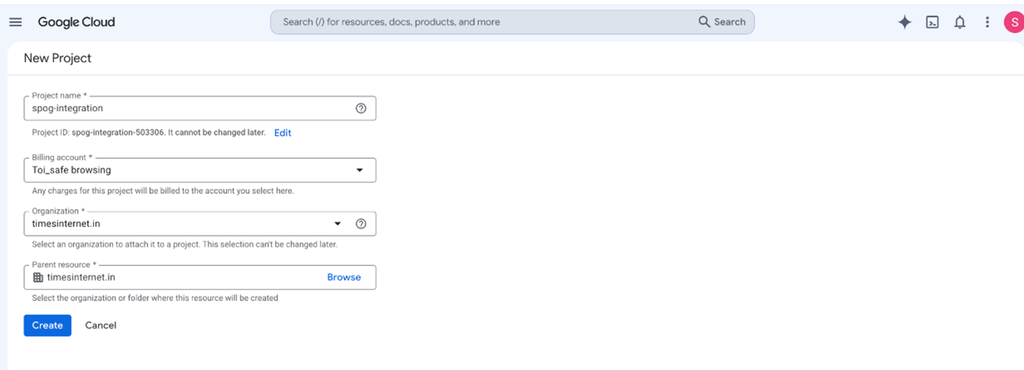
1. Create or Select a Google Cloud Project
Sign in to the Google Cloud Console and create a new project or select an existing project.
2. Enable Required APIs:
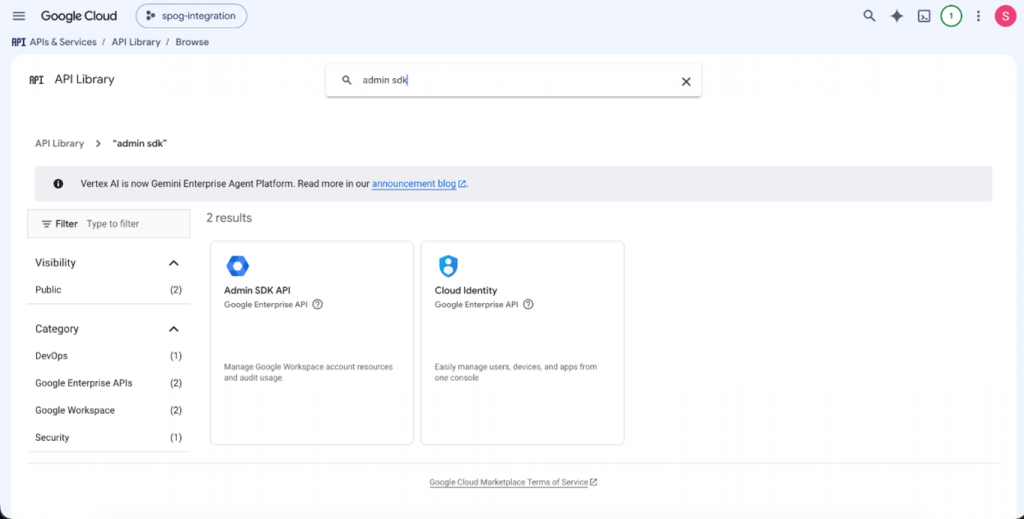
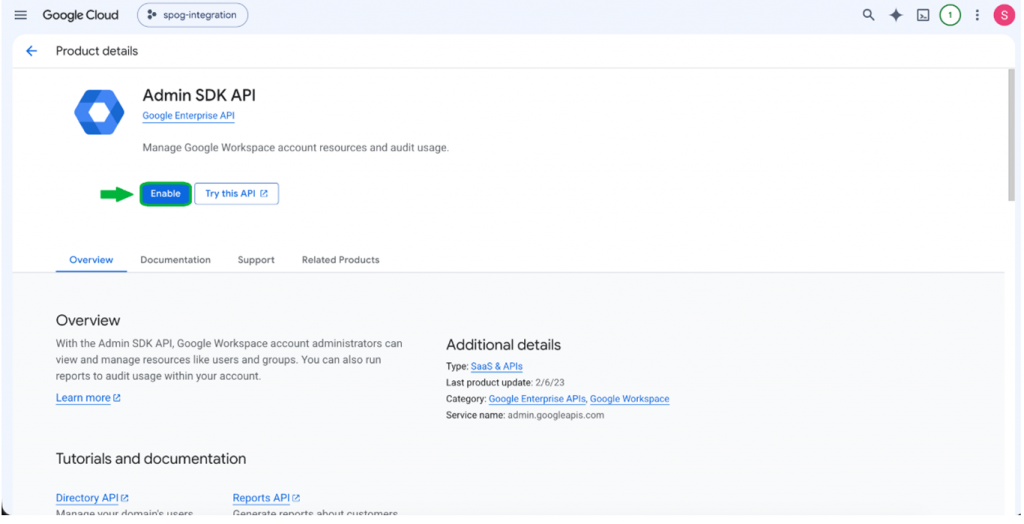
Navigate to APIs & Services → Library and enable the required APIs.
Required APIs
- Admin SDK
- Directory API
- Reports API
Optional APIs
- Google Drive API
- Google Calendar API
- Gmail API
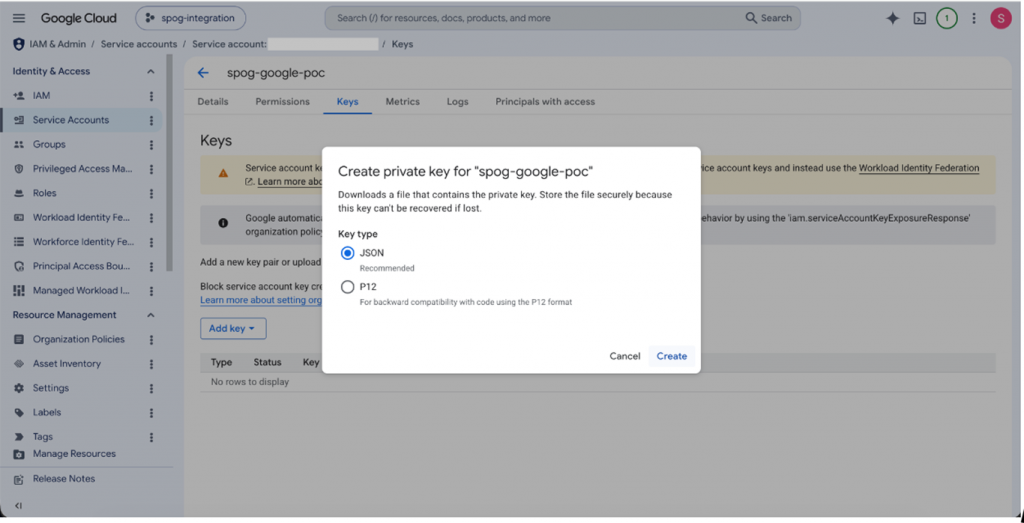
3. Create a Service Account
- Navigate to APIs & Services → Credentials.
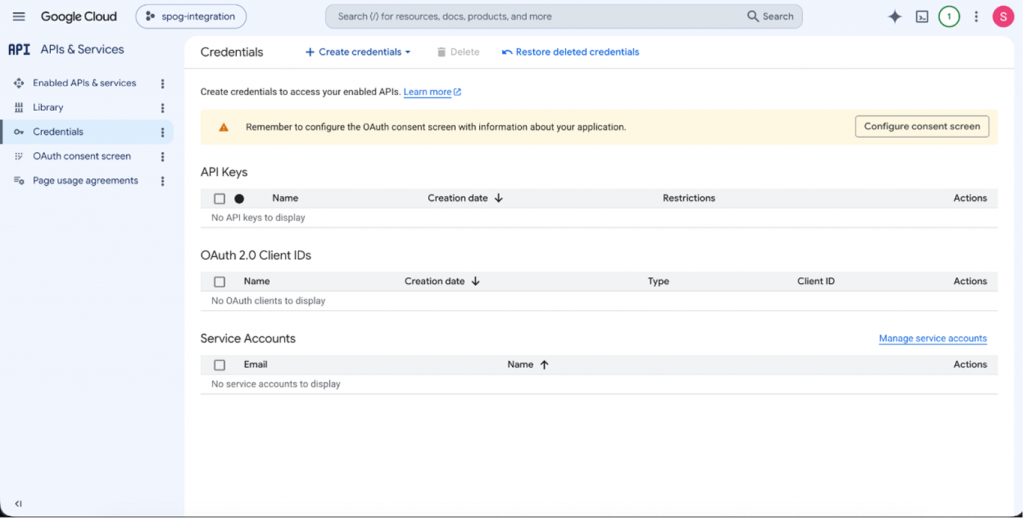
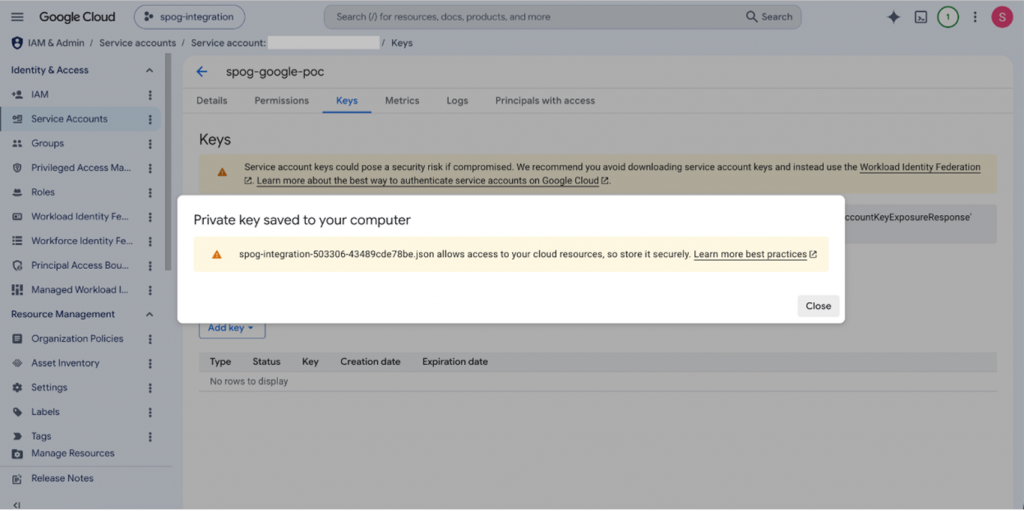
- Create a new Service Account and generate a JSON key. Download and securely store the credentials.
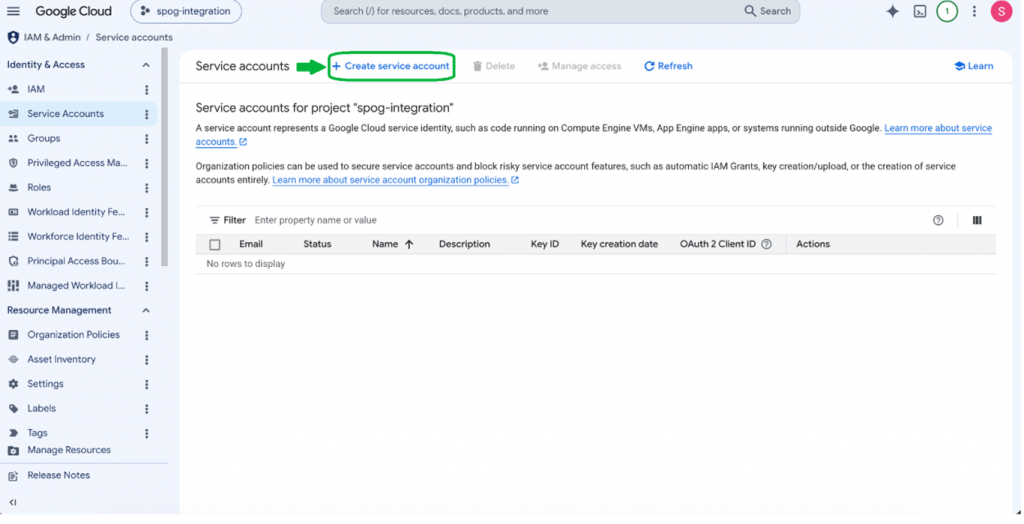
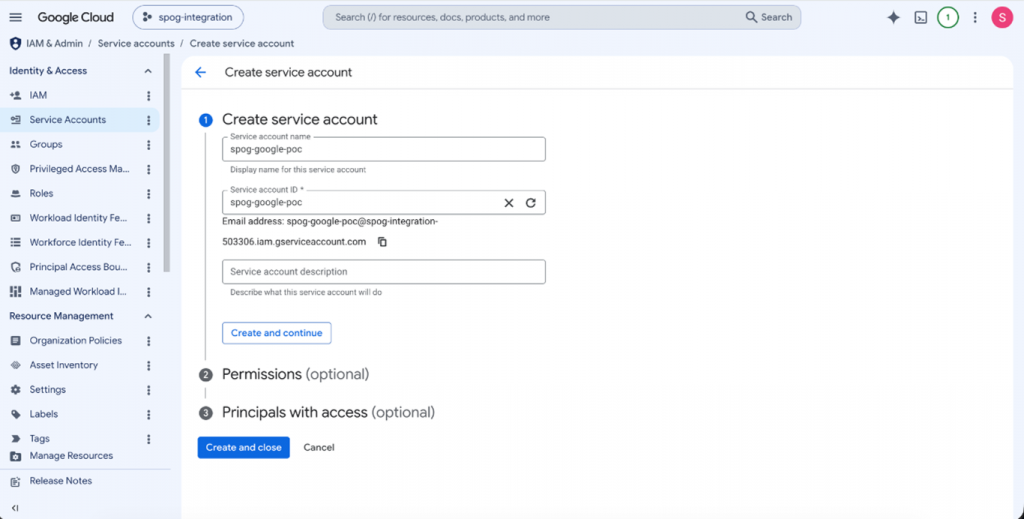
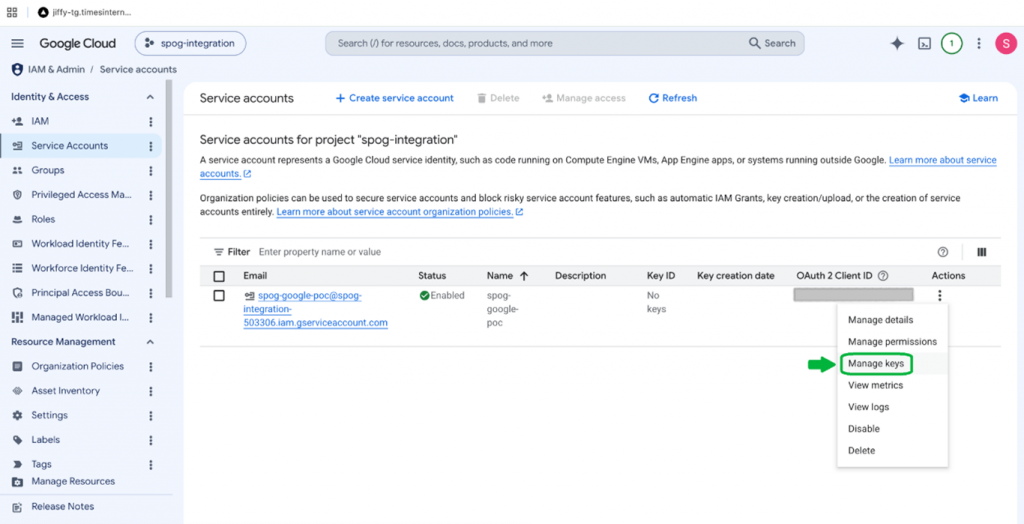
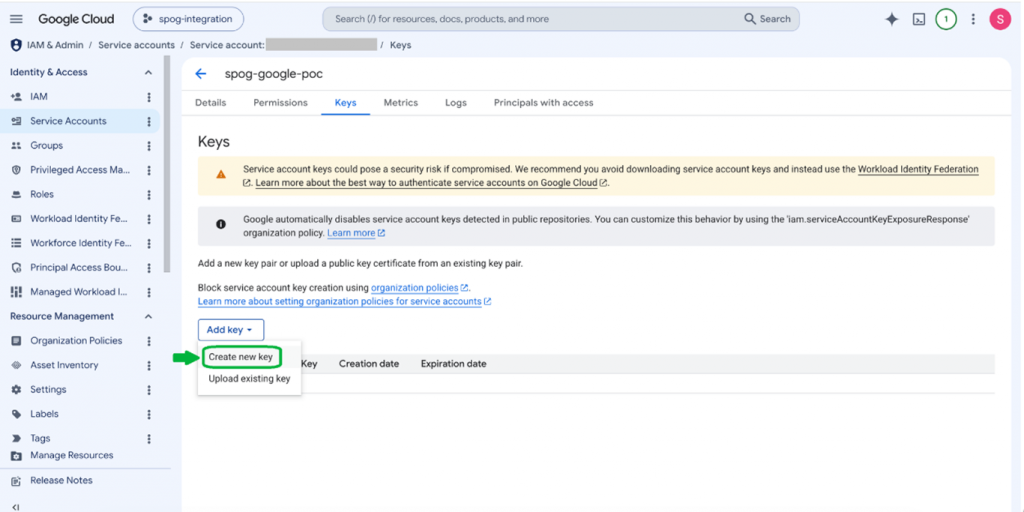
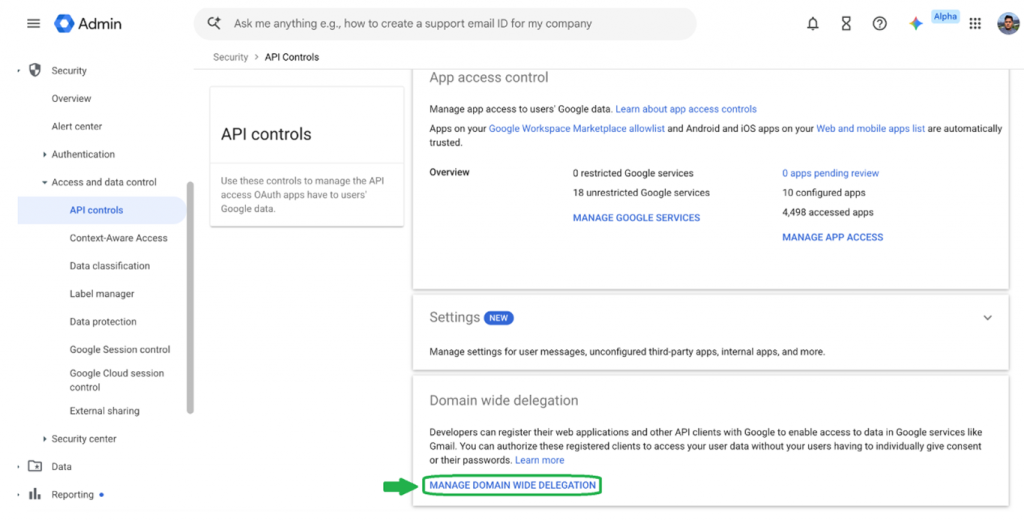
4. Configure Domain-Wide Delegation:
- In the Google Admin Console, navigate to Security → API Controls → Domain-Wide Delegation
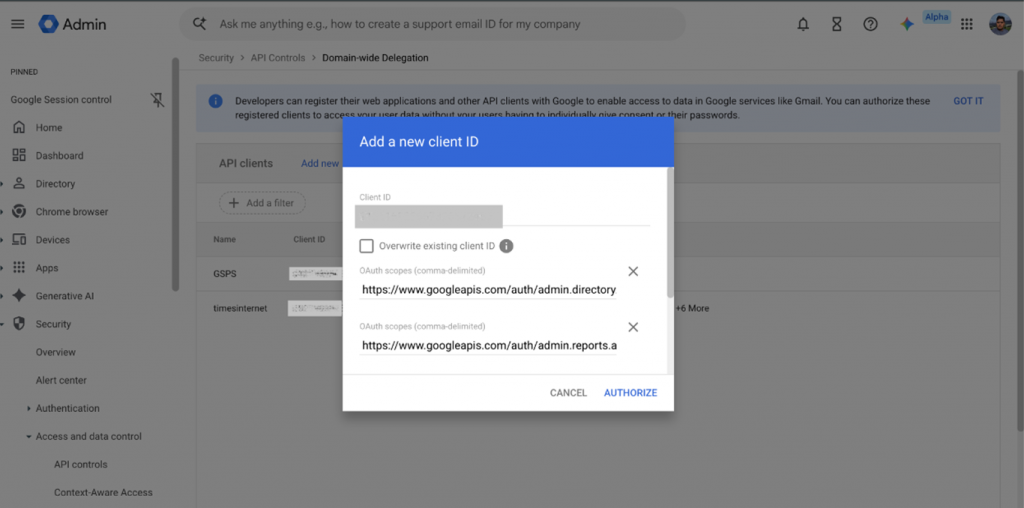
- Add the Service Account Client ID and authorize the required OAuth scopes.
- Grant only the minimum read-only permissions required.
| OAuth Scope | Purpose |
|---|---|
| https://www.googleapis.com/auth/admin.directory.user.readonly | Read user information |
| https://www.googleapis.com/auth/admin.reports.audit.readonly | Read audit logs |
| https://www.googleapis.com/auth/admin.reports.usage.readonly | Read usage reports |
| https://www.googleapis.com/auth/drive.metadata.readonly (Optional) | Read Drive metadata |
| https://www.googleapis.com/auth/calendar.readonly (Optional) | Read Calendar metadata |
Configure Google Workspace in SPOG.AI
- Log in to SPOG.AI.
- Navigate to Settings → Integrations.
- Click Add Integration.
- Select Google Workspace.
- Upload the Service Account JSON credentials.
- Provide any additional configuration details, if prompted.
- Click Test Connection to validate authentication and connectivity.
- Click Save to enable data synchronization.