Sharepoint







SPOG.AI integrates with Google Workspace to provide centralized visibility into users, groups, administrative activity, audit logs, and service usage across your Google Workspace environment. By synchronizing identity, security, and operational data through Google Workspace APIs, the integration enriches the SPOG.AI CMDB and enables continuous compliance monitoring, incident investigation, resource monitoring, and enterprise risk management. Data is synchronized securely using Google’s recommended authentication mechanisms with read-only permissions wherever possible.
| Capability | Description |
|---|---|
| Identity Synchronization | Synchronizes users, groups, organizational units, and directory metadata. |
| Audit Monitoring | Collects administrative events, login activity, and security audit logs. |
| Usage Analytics | Retrieves usage reports for Google Workspace services. |
| CMDB Enrichment | Maps Google Workspace identities and resources into the SPOG.AI CMDB. |
| Compliance Monitoring | Supports continuous compliance monitoring and evidence collection. |
| Incident Correlation | Enriches incident investigations with Google Workspace activity and audit data. |
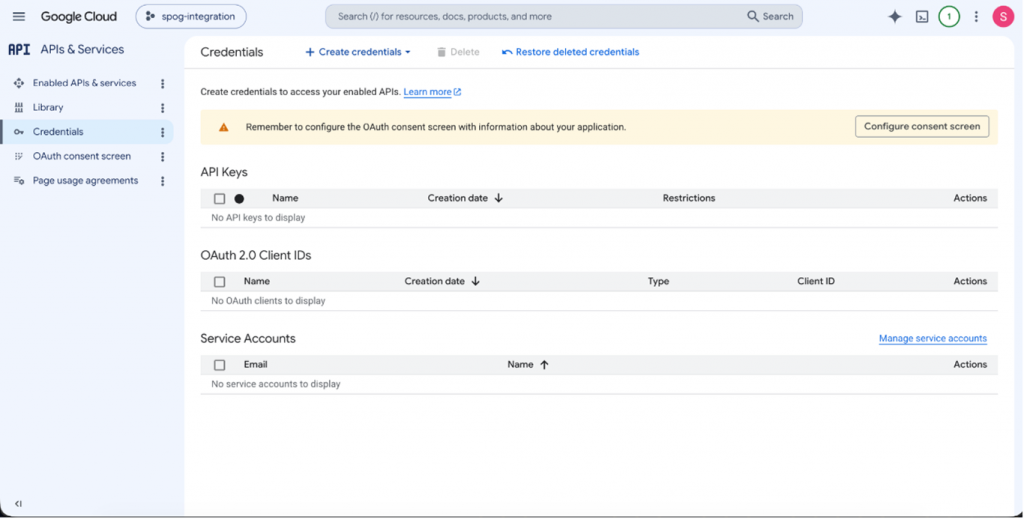
SPOG.AI connects to Google Workspace using the Google Admin SDK, Directory API, Reports API, and other supported Google Workspace APIs. Authentication is performed using a Google Cloud Service Account with OAuth 2.0 Domain-Wide Delegation, providing secure read-only access to authorized resources.
Once configured, SPOG.AI periodically synchronizes directory information, audit logs, usage reports, and optional resource metadata such as Google Drive and Calendar information. The collected data is normalized and stored within SPOG.AI, where it powers CMDB enrichment, compliance dashboards, analytics, incident workflows, and enterprise cyber risk management.
| Category | Data Synchronized | Description |
|---|---|---|
| Directory | Users, Groups, Organizational Units, Custom Schemas | Identity and organizational information. |
| Audit Logs | Administrative events, Login activity, Token activity | Security and administrative audit records. |
| Usage Reports | Gmail, Drive, Calendar and other Workspace service usage | User and service utilization metrics. |
| Resource Metadata | Google Drive metadata, Calendar metadata (optional) | Metadata for supported Google Workspace resources. |
Before configuring the integration, ensure the following prerequisites are met:
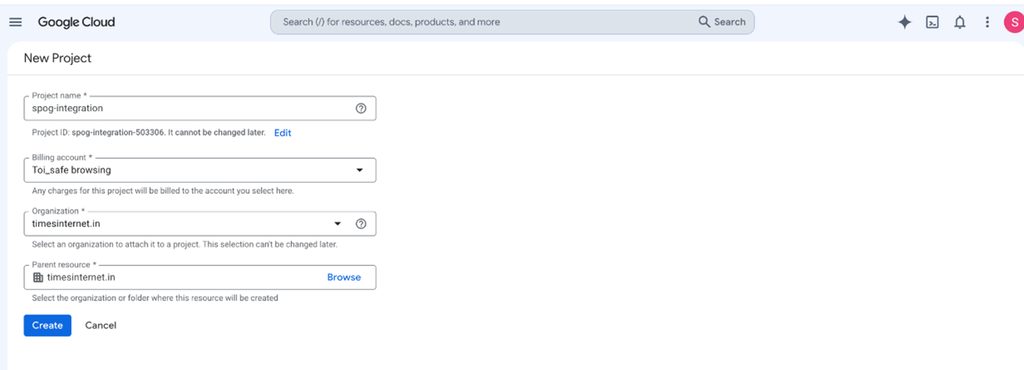
Sign in to the Google Cloud Console and create a new project or select an existing project.
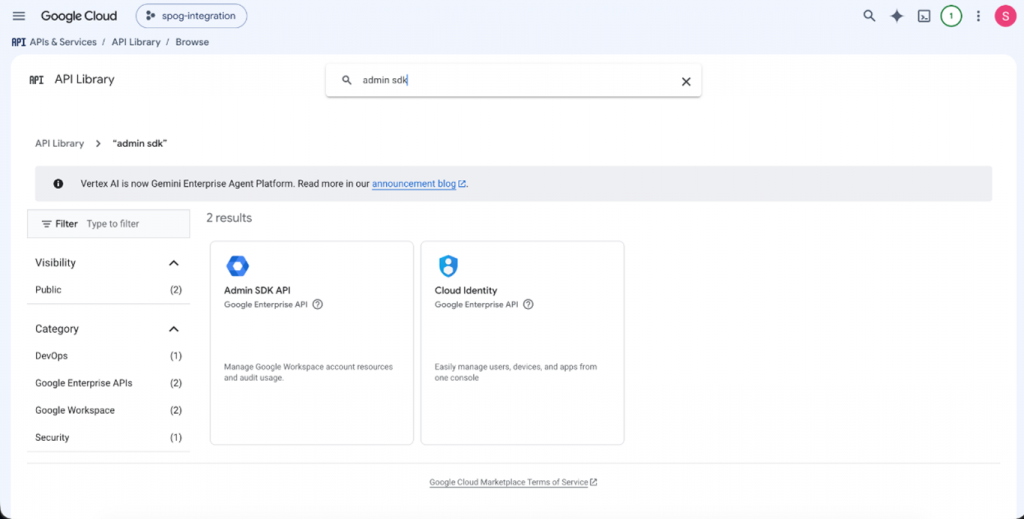
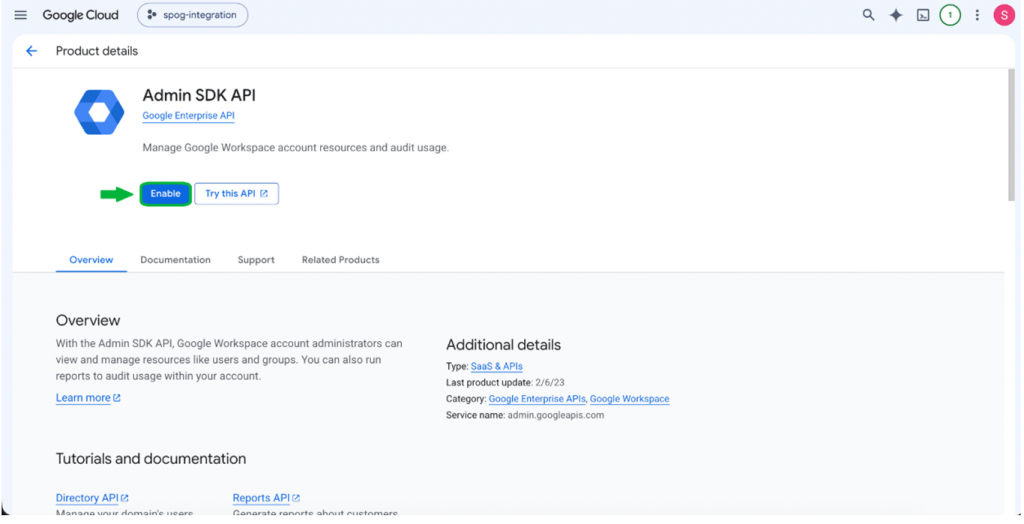
Navigate to APIs & Services → Library and enable the required APIs.
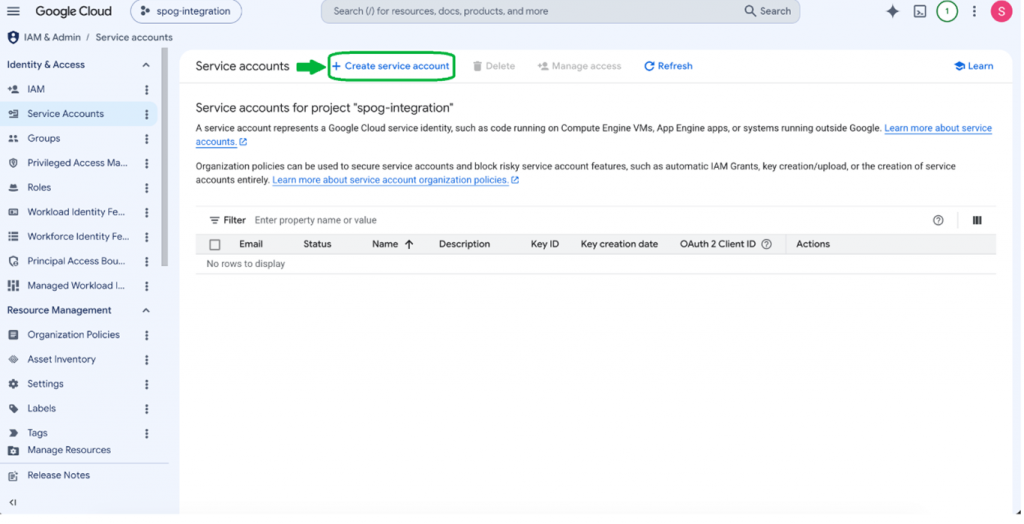
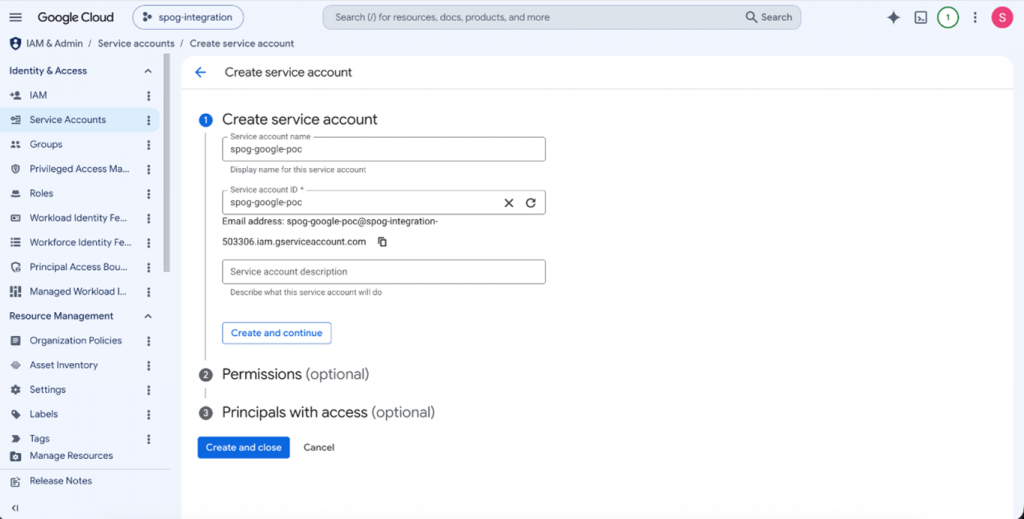
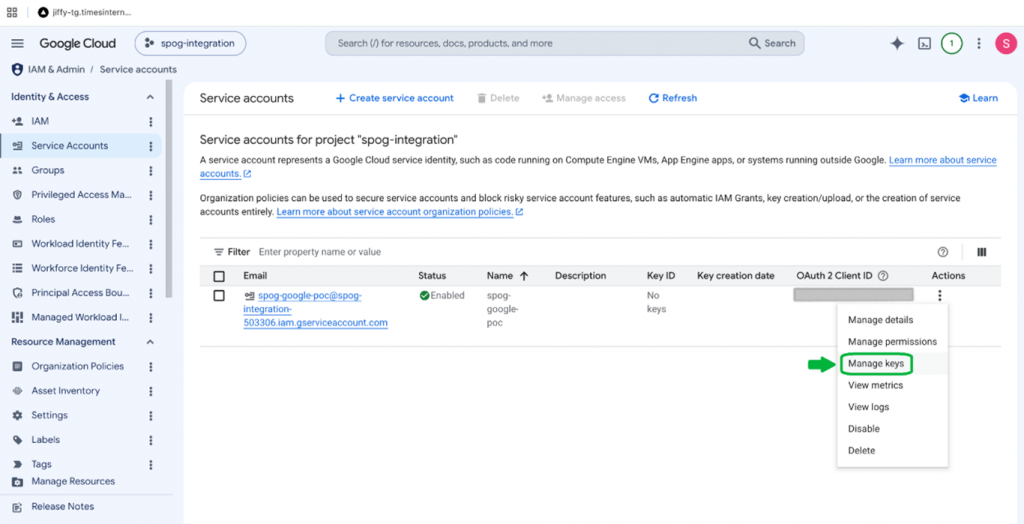
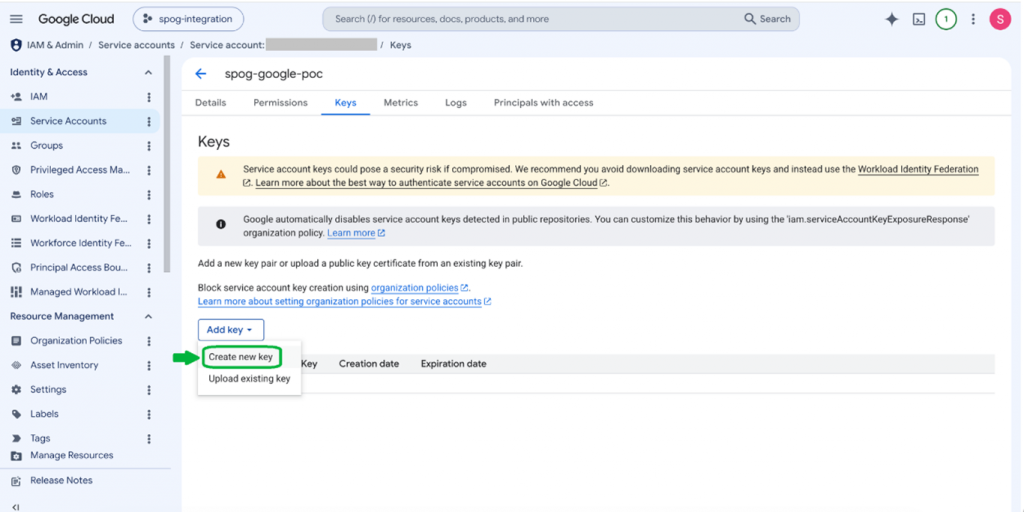
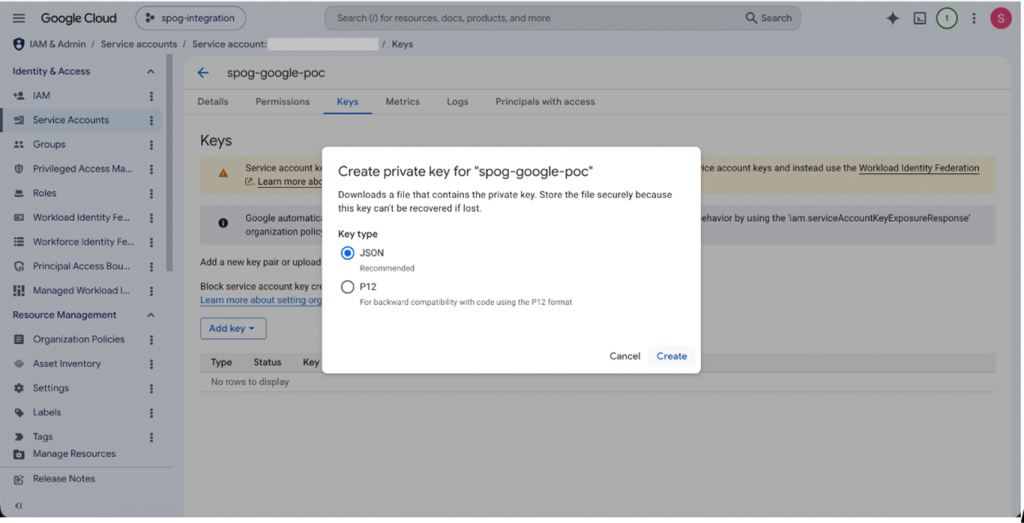
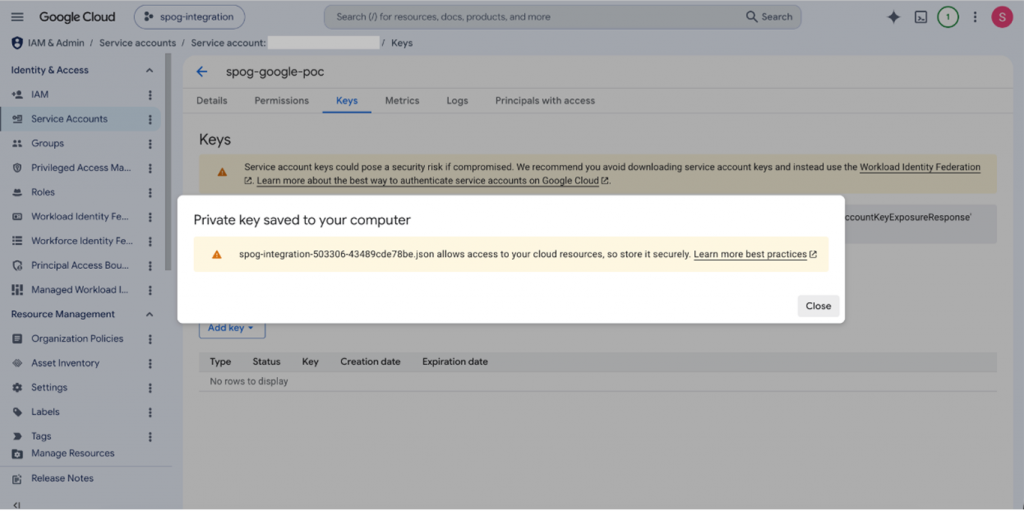
| OAuth Scope | Purpose |
|---|---|
| https://www.googleapis.com/auth/admin.directory.user.readonly | Read user information |
| https://www.googleapis.com/auth/admin.reports.audit.readonly | Read audit logs |
| https://www.googleapis.com/auth/admin.reports.usage.readonly | Read usage reports |
| https://www.googleapis.com/auth/drive.metadata.readonly (Optional) | Read Drive metadata |
| https://www.googleapis.com/auth/calendar.readonly (Optional) | Read Calendar metadata |
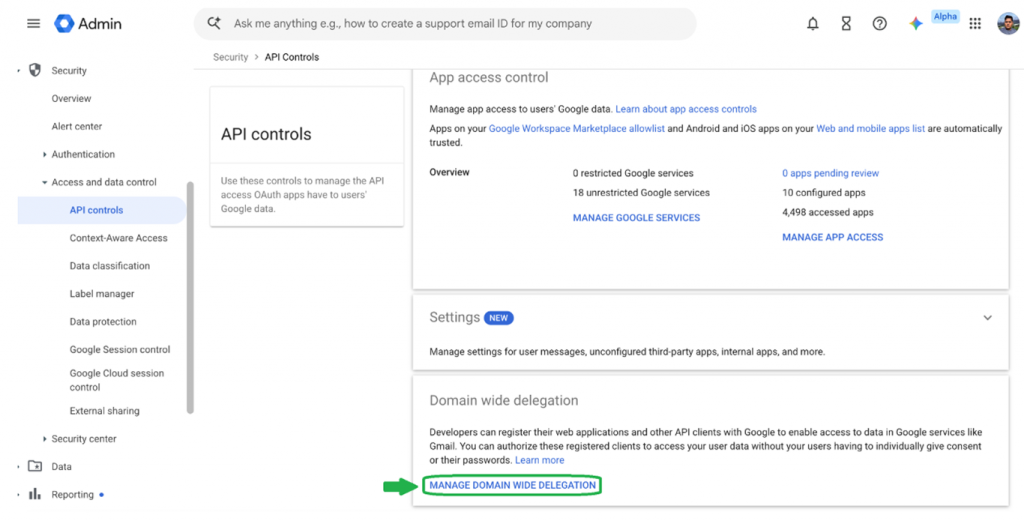
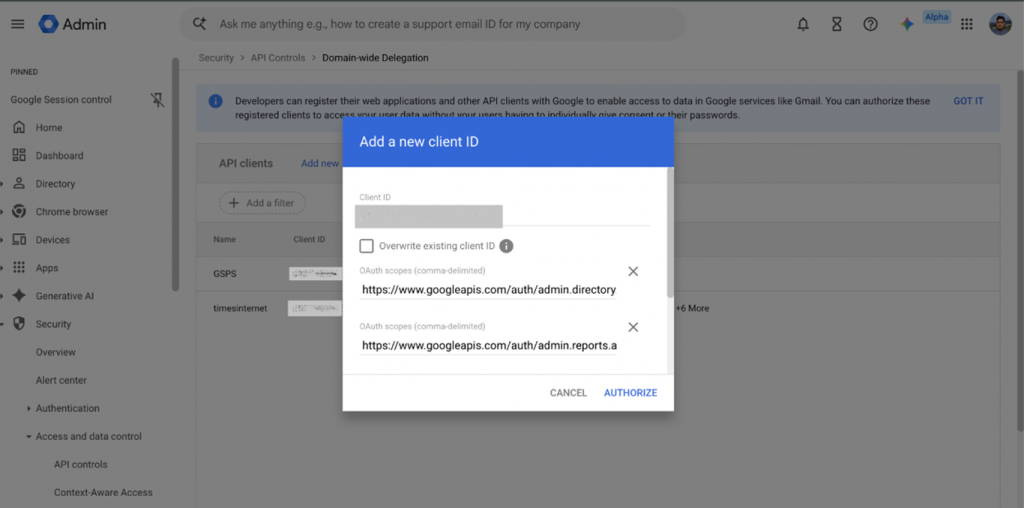

SPOG.AI integrates with Adobe to synchronize user and group inventory for centralized identity, license, and compliance visibility. The implemented connector uses Adobe OAuth Server-to-Server credentials and imports read-only directory records into SPOG.AI.
| Capability | Description |
|---|---|
| User Inventory | Imports Adobe users and profile attributes. |
| Group Membership | Retrieves groups and associates membership context. |
| Domain Filtering | Limits ingestion to configured email domains. |
| OAuth Authentication | Uses Adobe client credentials and organization context. |
| Read-only Synchronization | Does not modify Adobe users, groups, licenses, or policies. |
The SPOG Appliance obtains an Adobe IMS access token with the configured client ID, client secret, and organization ID. It calls the configured user and group APIs over HTTPS, filters users by included domains, and imports normalized identity records into SPOG.AI.
Before configuring the integration, ensure the following prerequisites are met:
Create or open an Adobe Developer Console project and add the required user-management API.
Add the Adobe integration in SPOG.AI.
Use the fields below when creating the integration in SPOG.AI.
| Field | Requirement | Description |
|---|---|---|
| client_id | Mandatory | Adobe OAuth client ID. |
| client_secret | Mandatory | Adobe OAuth client secret. |
| organization_id | Mandatory | Adobe organization identifier. |
| include_domains | Mandatory | Comma-separated email domains included in ingestion. |
| token_api | Optional | Adobe IMS token endpoint override. |
| users_api | Optional | Adobe users endpoint override. |
| groups_api | Optional | Adobe groups endpoint override. |
Obtain an Adobe IMS token, then retrieve a sample user or group through the configured API. Run the appliance job and confirm that users from included domains appear in SPOG.AI. Common failures are 401 for invalid credentials, 403 for missing product-profile access, and timeouts for blocked network access.
| Data | Coverage |
|---|---|
| Users | Adobe user and identity attributes returned by the configured API. |
| Groups | Adobe group records and membership context. |
| Filtering | Only users matching include_domains are ingested. |
| Not Implemented | The current connector does not ingest endpoints, alerts, webhooks, or configuration state and does not perform write operations. |